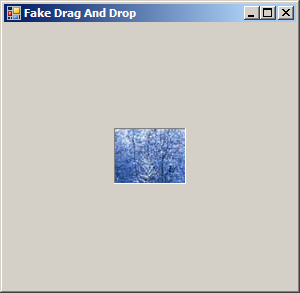
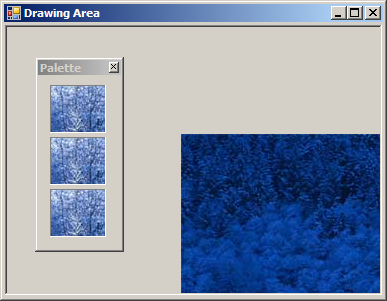
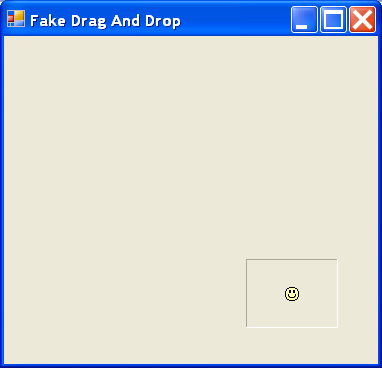
Drag and drop the PictureBox
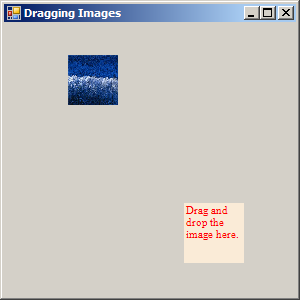
  using System;
  using System.Drawing;
  using System.Collections;
  using System.ComponentModel;
  using System.Windows.Forms;
  using System.Data;

  public class Form1 : System.Windows.Forms.Form
  {
    private bool  isDragging = false;
    private int   currentX, currentY;

    Rectangle dropRect = new Rectangle(180, 180, 60, 60);

    private PictureBox myPictureBox;

    public Form1()
    {
      InitializeComponent();
      CenterToScreen();

      myPictureBox = new PictureBox();
      myPictureBox.SizeMode = PictureBoxSizeMode.StretchImage;
      myPictureBox.Location = new System.Drawing.Point(64, 32);
      myPictureBox.Size = new System.Drawing.Size(50, 50);
      myPictureBox.Image = new Bitmap("winter.jpg");
      myPictureBox.MouseDown += new MouseEventHandler(myPictureBox_MouseDown);
      myPictureBox.MouseUp += new MouseEventHandler(myPictureBox_MouseUp);
      myPictureBox.MouseMove += new MouseEventHandler(myPictureBox_MouseMove);
      myPictureBox.Cursor = Cursors.Hand;

      Controls.Add(myPictureBox);
    }
    private void InitializeComponent()
    {
      this.AutoScaleBaseSize = new System.Drawing.Size(5, 13);
      this.ClientSize = new System.Drawing.Size(292, 273);
      this.Text = "Dragging Images";
      this.Paint += new System.Windows.Forms.PaintEventHandler(this.Form1_Paint);
    }

    static void Main()
    {
      Application.Run(new Form1());
    }
    private void myPictureBox_MouseDown(object sender, MouseEventArgs e)
    {
      isDragging = true;

      currentX = e.X;
      currentY = e.Y;
    }

    private void myPictureBox_MouseMove(object sender, MouseEventArgs e) {
      if (isDragging) {
        myPictureBox.Top = myPictureBox.Top + (e.Y - currentY);
        myPictureBox.Left = myPictureBox.Left + (e.X - currentX);
      }
    }
    private void myPictureBox_MouseUp(object sender, MouseEventArgs e)
    {
      isDragging = false;
      Console.WriteLine(dropRect.Contains(myPictureBox.Bounds));
    }

    private void Form1_Paint(object sender, System.Windows.Forms.PaintEventArgs e)
    {
      Graphics g = e.Graphics;
      g.FillRectangle(Brushes.AntiqueWhite, dropRect);

      g.DrawString("Drag and drop the image here.", new Font("Times New Roman", 8), Brushes.Red, dropRect);
    }
  }
Related examples in the same category