Add Image to ToolBar Button : Toolbar « GUI Windows Forms « C# / CSharp Tutorial

C# / CSharp Tutorial
1. Language Basics
2. Data Type
3. Operator
4. Statement
5. String
6. struct
7. Class
8. Operator Overload
9. delegate
10. Attribute
11. Data Structure
12. Assembly
13. Date Time
14. Development
15. File Directory Stream
16. Preprocessing Directives
17. Regular Expression
18. Generic
19. Reflection
20. Thread
21. I18N Internationalization
22. GUI Windows Forms
23. 2D
24. Design Patterns
25. Windows
26. XML
27. ADO.Net
28. Network
29. Directory Services
30. Security
31. unsafe
Java
Java Tutorial
Java Source Code / Java Documentation
Java Open Source
Jar File Download
Java Articles
Java Products
Java by API
Photoshop Tutorial
C# / C Sharp
C# / CSharp Open Source
ASP.Net
ASP.NET Tutorial
JavaScript DHTML
JavaScript Tutorial
JavaScript Reference
HTML / CSS
HTML CSS Reference
C / ANSI-C
C Tutorial
C++
C++ Tutorial
Ruby
PHP
Python
Python Tutorial
Python Open Source
SQL Server / T-SQL
SQL Server / T-SQL Tutorial
Oracle PL / SQL
Oracle PL/SQL Tutorial
PostgreSQL
SQL / MySQL
MySQL Tutorial
VB.Net
VB.Net Tutorial
Flash / Flex / ActionScript
VBA / Excel / Access / Word
XML
XML Tutorial
Microsoft Office PowerPoint 2007 Tutorial
Microsoft Office Excel 2007 Tutorial
Microsoft Office Word 2007 Tutorial
C# / CSharp Tutorial » GUI Windows Forms » Toolbar 
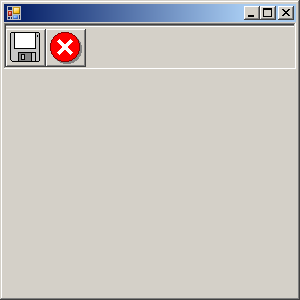
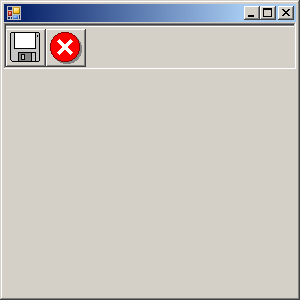
22. 38. 7. Add Image to ToolBar Button
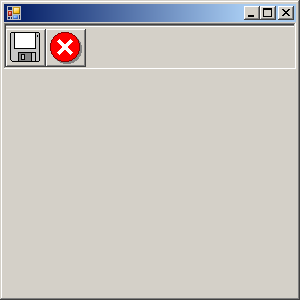
Add Image to ToolBar Button
using System;
using System.Drawing;
using System.Collections;
using System.ComponentModel;
using System.Windows.Forms;
using System.Data;

public class ImageListCreateAndAddToToolBar : System.Windows.Forms.Form
{
  private ImageList toolBarIcons;
  private ToolBarButton tbExitButton;
  private ToolBarButton tbSaveButton;
  private ToolBar toolBar;
  private System.ComponentModel.Container components = null;

  public ImageListCreateAndAddToToolBar()
  {
    this.components = new System.ComponentModel.Container();
    this.Size = new System.Drawing.Size(300,300);

    toolBar = new ToolBar();
    toolBarIcons = new ImageList();
    tbSaveButton = new ToolBarButton();
    tbExitButton = new ToolBarButton();

    tbSaveButton.ImageIndex = 0;
    tbExitButton.ImageIndex = 1;

    toolBar.ImageList = toolBarIcons;
    toolBar.Size = new System.Drawing.Size(27228);
    toolBar.BorderStyle = System.Windows.Forms.BorderStyle.Fixed3D;
    toolBar.ShowToolTips = true;
    toolBar.Buttons.AddRange(new ToolBarButton[] {tbSaveButton, tbExitButton});
    toolBar.ButtonClick += new ToolBarButtonClickEventHandler(ToolBar_Clicked);
    
    toolBarIcons.ImageSize = new System.Drawing.Size(3232);
    toolBarIcons.Images.Add(new Icon("filesave.ico"));
    toolBarIcons.Images.Add(new Icon("fileexit.ico"));
    toolBarIcons.ColorDepth = ColorDepth.Depth16Bit;
    toolBarIcons.TransparentColor = System.Drawing.Color.Transparent;

    this.Controls.Add(toolBar);    

  }

  [STAThread]
  static void Main() 
  {
    Application.Run(new ImageListCreateAndAddToToolBar());
  }
  
  private void ToolBar_Clicked(object sender, ToolBarButtonClickEventArgs e
  {
    MessageBox.Show(e.Button.ToolTipText);
  }
}
22. 38. Toolbar
22. 38. 1. Toolbar with ComboBoxToolbar with ComboBox
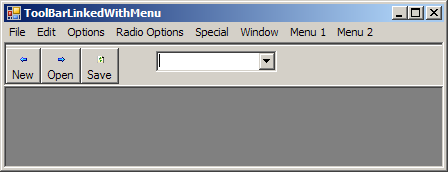
22. 38. 2. ToolBar Linked With MenuToolBar Linked With Menu
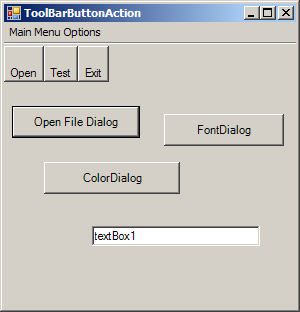
22. 38. 3. ToolBar Button ActionToolBar Button Action
22. 38. 4. Add Button action to ToolBar ButtonAdd Button action to ToolBar Button
22. 38. 5. Add ToolTip to ToolBar ButtonAdd ToolTip to ToolBar Button
22. 38. 6. Create an ImageList and use it for ToolBarCreate an ImageList and use it for ToolBar
22. 38. 7. Add Image to ToolBar ButtonAdd Image to ToolBar Button
22. 38. 8. ToolBar Button border style: BorderStyle.Fixed3DToolBar Button border style: BorderStyle.Fixed3D
22. 38. 9. Cut, Copy Paste/Text Box with Toolbar
w__w_w__._ja_va___2___s___._c__o__m__ | Contact Us
Copyright 2003 - 08 Demo Source and Support. All rights reserved.
All other trademarks are property of their respective owners.