Custom FileView for Some Java-Related File Types : JFileChooser « Swing « Java Tutorial

Java Tutorial
1. Language
2. Data Type
3. Operators
4. Statement Control
5. Class Definition
6. Development
7. Reflection
8. Regular Expressions
9. Collections
10. Thread
11. File
12. Generics
13. I18N
14. Swing
15. Swing Event
16. 2D Graphics
17. SWT
18. SWT 2D Graphics
19. Network
20. Database
21. Hibernate
22. JPA
23. JSP
24. JSTL
25. Servlet
26. Web Services SOA
27. EJB3
28. Spring
29. PDF
30. Email
31. J2ME
32. J2EE Application
33. XML
34. Design Pattern
35. Log
36. Security
37. Apache Common
38. Ant
39. JUnit
Java
Java Source Code / Java Documentation
Java Open Source
Jar File Download
Java Articles
Java Products
Java by API
C# / C Sharp
C# / CSharp Tutorial
ASP.Net
ASP.NET Tutorial
JavaScript DHTML
JavaScript Tutorial
JavaScript Reference
HTML / CSS
HTML CSS Reference
C / ANSI-C
C Tutorial
C++
C++ Tutorial
Ruby
PHP
Python
SQL Server / T-SQL
SQL Server / T-SQL Tutorial
Oracle PL / SQL
Oracle PL/SQL Tutorial
PostgreSQL
SQL / MySQL
MySQL Tutorial
VB.Net
VB.Net Tutorial
Flash / Flex / ActionScript
VBA / Excel / Access / Word
Microsoft Office PowerPoint 2007 Tutorial
Microsoft Office Excel 2007 Tutorial
Microsoft Office Word 2007 Tutorial
Java Tutorial » Swing » JFileChooser 
14. 74. 7. Custom FileView for Some Java-Related File Types

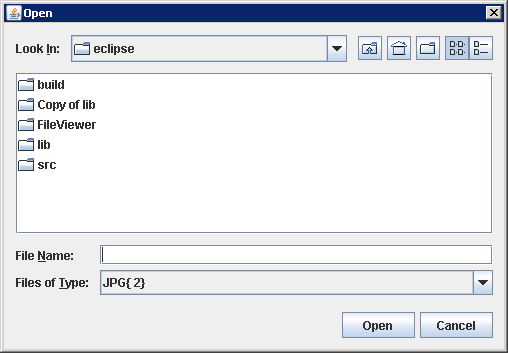
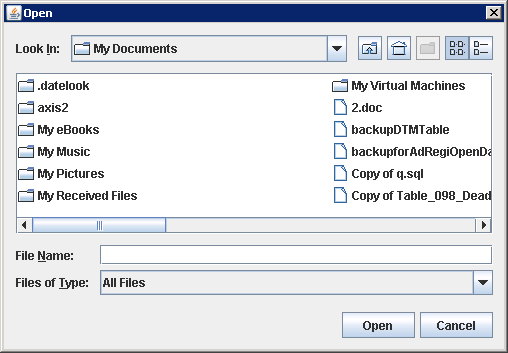
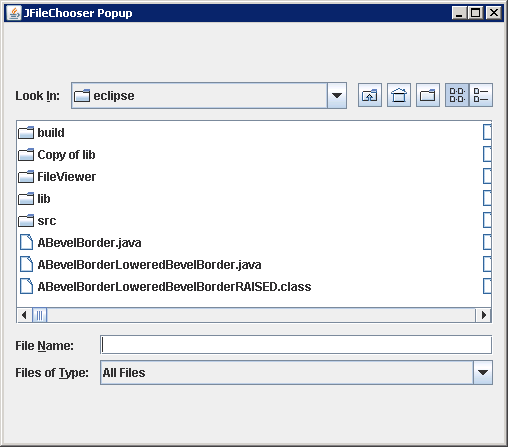
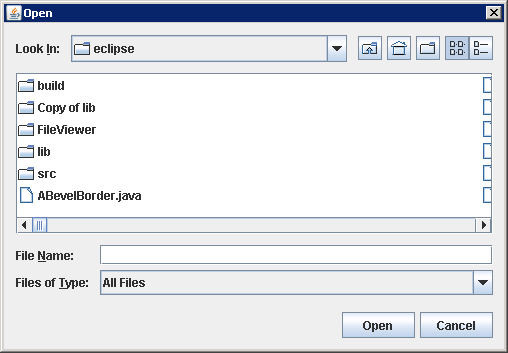
FileView is the area where all the file names are listed.

Custom FileView for Some Java-Related File Types
import java.io.File;

import javax.swing.Icon;
import javax.swing.ImageIcon;
import javax.swing.JFileChooser;
import javax.swing.filechooser.FileView;

class JavaFileView extends FileView {
  Icon jarIcon = new ImageIcon("yourFile.gif");

  public String getName(File file) {
    String filename = file.getName();
    if (filename.endsWith(".java")) {
      String name = filename + " : " + file.length();
      return name;
    }
    return null;
  }
  public String getTypeDescription(File file) {
    String typeDescription = null;
    String filename = file.getName().toLowerCase();

    if (filename.endsWith(".java"|| filename.endsWith(".class")) {
      typeDescription = "Java Source";
    }
    return typeDescription;
  }

  public Icon getIcon(File file) {
    if (file.isDirectory()) {
      return null;
    }
    Icon icon = null;
    String filename = file.getName().toLowerCase();
    if (filename.endsWith(".java"|| filename.endsWith(".class")) {
      icon = jarIcon;
    }
    return icon;
  }
}
public class UsingFileView {
  public static void main(String[] a){
    JFileChooser fileChooser = new JFileChooser();
    fileChooser.setFileView(new JavaFileView());
    fileChooser.showOpenDialog(null);
  }
}
14. 74. JFileChooser
14. 74. 1. JFileChooser
14. 74. 2. Using JFileChooserUsing JFileChooser
14. 74. 3. Working with File FiltersWorking with File Filters
14. 74. 4. To enable the display of hidden filesTo enable the display of hidden files
14. 74. 5. The JFileChooser supports three selection modes: files only, directories only, and files and directories
14. 74. 6. Adding Accessory PanelsAdding Accessory Panels
14. 74. 7. Custom FileView for Some Java-Related File TypesCustom FileView for Some Java-Related File Types
14. 74. 8. Using a JFileChooser in Your JFrameUsing a JFileChooser in Your JFrame
14. 74. 9. ActionListener for JFileChooser in Your JFrameActionListener for JFileChooser in Your JFrame
14. 74. 10. JFileChooser Selection Option: JFileChooser.APPROVE_OPTION, JFileChooser.CANCEL_OPTIONJFileChooser Selection Option: JFileChooser.APPROVE_OPTION, JFileChooser.CANCEL_OPTION
14. 74. 11. Adding an ActionListener to a JFileChooser to listen for selection of the approval or cancel actions.Adding an ActionListener to a JFileChooser to listen for selection of the approval or cancel actions.
14. 74. 12. Customizing a JFileChooser Look and Feel
w_w__w___.__j__av_a2s__.c___o__m | Contact Us
Copyright 2003 - 08 Demo Source and Support. All rights reserved.
All other trademarks are property of their respective owners.