Home
Java Tutorial
Language
Data Type
Operators
Statement Control
Class Definition
Development
Reflection
Regular Expressions
Collections
Thread
File
Generics
I18N
Swing
Swing Event
2D Graphics
SWT
SWT 2D Graphics
Network
Database
Hibernate
JPA
JSP
JSTL
Servlet
Web Services SOA
EJB3
Spring
PDF
Email
J2ME
J2EE Application
XML
Design Pattern
Log
Security
Apache Common
Ant
JUnit
FormLayout « SWT « Java Tutorial
Java Tutorial
SWT
FormLayout
17.94.FormLayout
17.94.1.
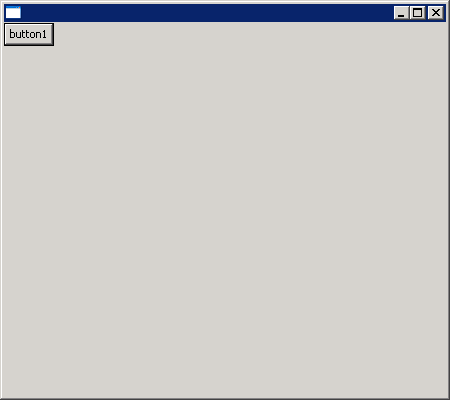
Using FormLayouts
17.94.2.
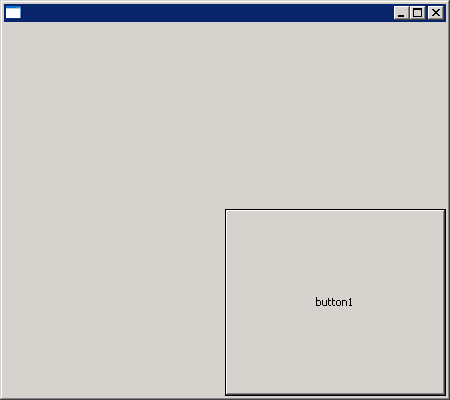
FormLayout: attach with left and right margin
17.94.3.
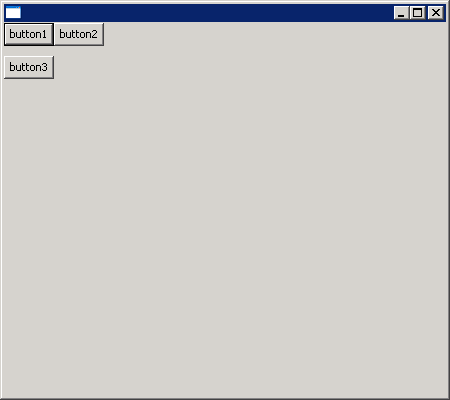
FormLayout: attach each other
17.94.4.
FormData Objects and FormAttachment Objects
17.94.5.
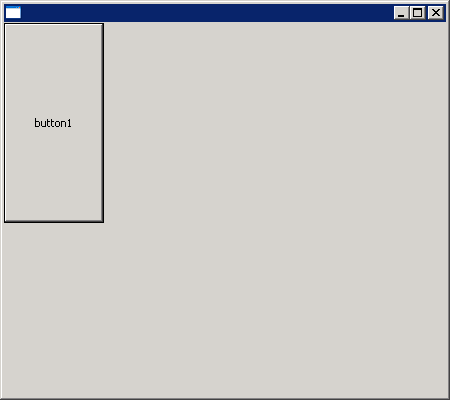
FormData: width and height
17.94.6.
FormLayout: spacing
17.94.7.
To configure the attachment of each side
17.94.8.
Attaching a Control to a Position in the Parent Composite
17.94.9.
Specify the offset of the control side from the attachment position
17.94.10.
Without FormAttachment objects
17.94.11.
Specify attachments for all four sides of a control.
17.94.12.
Attaching a Control to Another Control
17.94.13.
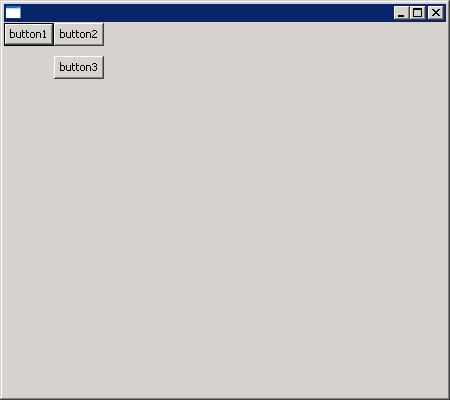
Attaching to the Adjacent Side of Another Control
17.94.14.
Attaching to the Specified Side of Another Control
17.94.15.
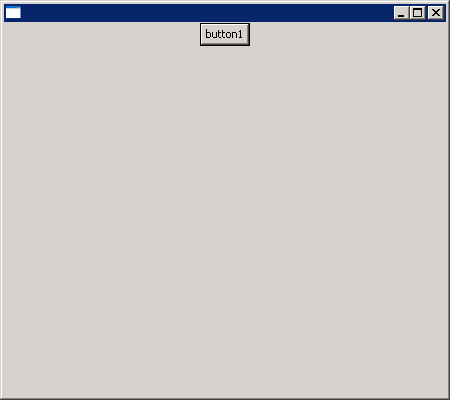
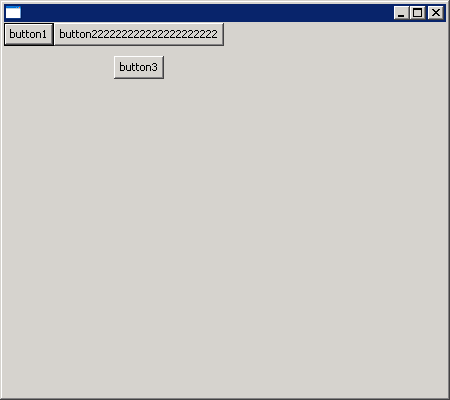
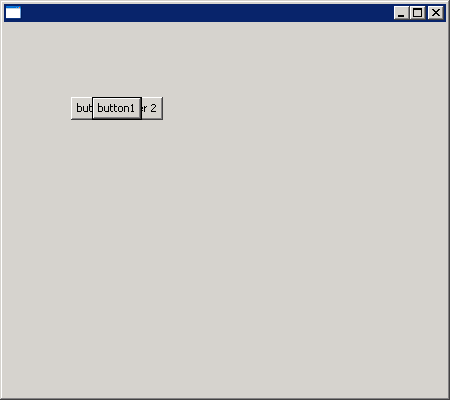
Center a control on another control
17.94.16.
Center control both horizontally and vertically
17.94.17.
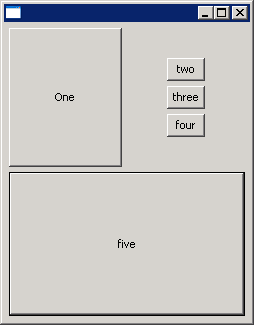
Use FormLayout to layout a dialog
17.94.18.
Start with the upper-left button, attach the top and left edges to the window, offsetting by five pixels:
17.94.19.
To create the upper-right three buttons, you reason that you can put them all in a composite with a grid layout, and attach the composite to your first button:
17.94.20.
Attach the bottom button to the upper-left button and the window:
17.94.21.
FormLayout Complex
17.94.22.
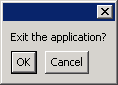
FormLayout example snippet: create a simple dialog using form layout
17.94.23.
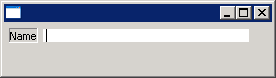
FormLayout example snippet: center a label and single line text using a form layout
17.94.24.
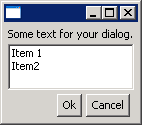
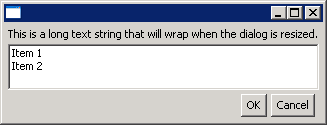
FormLayout example snippet: create a simple OK/CANCEL dialog using form layout