Always refer to cell A10: =INDIRECT("A10") : INDIRECT « Lookup Reference functions « Microsoft Office Excel 2007 Tutorial

Microsoft Office Excel 2007 Tutorial
1. Introduction
2. Editing
3. Format Style
4. Table
5. Chart
6. Formula
7. Workbook Worksheet
8. Wordart Clip Art Shape Picture
9. PivotTable PivotChart
10. Data Analysis
11. Macro ActiveX Add in
12. Security
13. Collaboration
14. Database functions
15. Date Time functions
16. Engineering functions
17. Information functions
18. Logical functions
19. Lookup Reference functions
20. Math Trigonometry functions
21. Statistical functions
22. Text functions
Java
Java Tutorial
Java Source Code / Java Documentation
Java Open Source
Jar File Download
Java Articles
Java Products
Java by API
C# / C Sharp
C# / CSharp Tutorial
ASP.Net
JavaScript DHTML
JavaScript Tutorial
JavaScript Reference
HTML / CSS
HTML CSS Reference
C / ANSI-C
C Tutorial
C++
C++ Tutorial
PHP
Python
SQL Server / T-SQL
Oracle PL / SQL
Oracle PL/SQL Tutorial
PostgreSQL
SQL / MySQL
MySQL Tutorial
VB.Net
VB.Net Tutorial
Microsoft Office PowerPoint 2007 Tutorial
Microsoft Office Word 2007 Tutorial
Microsoft Office Excel 2007 Tutorial » Lookup Reference functions » INDIRECT 
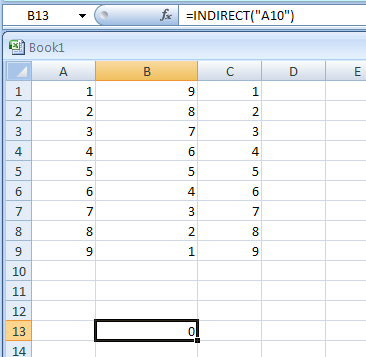
19. 9. 4. Always refer to cell A10: =INDIRECT("A10")
Input the formula: =INDIRECT("A10"). Press Enter to get the result.
Input the formula: =INDIRECT
19. 9. INDIRECT
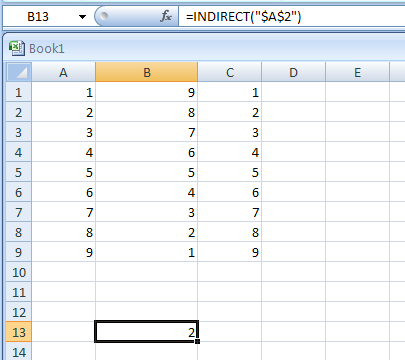
19. 9. 1. INDIRECT(ref_text,a1) returns a reference indicated by a text valueINDIRECT(ref_text,a1) returns a reference indicated by a text value
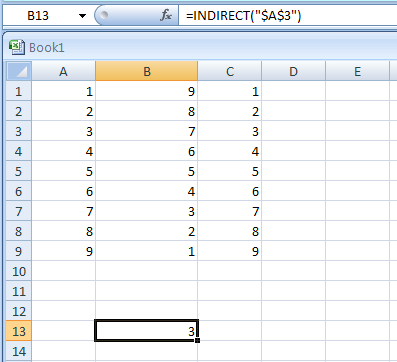
19. 9. 2. =INDIRECT("$A$3") get the value of the reference in cell A3=INDIRECT(
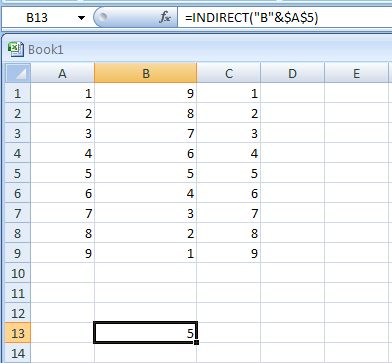
19. 9. 3. =INDIRECT("B"&$A$5) returns the value of a reference in cell A5=INDIRECT(
19. 9. 4. Always refer to cell A10: =INDIRECT("A10")Always refer to cell A10: =INDIRECT(
w_ww.ja_v___a2___s__.c___o_m__ | Contact Us
Copyright 2003 - 08 Demo Source and Support. All rights reserved.
All other trademarks are property of their respective owners.