View Installed Add-ins : Add ins « Add ins Macro ActiveX « Microsoft Office PowerPoint 2007 Tutorial
Microsoft Office PowerPoint 2007 Tutorial
1. Introduction
2. Editing Format
3. Slides
4. Chart Table
5. WordArt Picture Clip Art Shape
6. Add ins Macro ActiveX
Java
Java Tutorial
Java Source Code / Java Documentation
Java Open Source
Jar File Download
Java Articles
Java Products
Java by API
C# / C Sharp
C# / CSharp Tutorial
ASP.Net
JavaScript DHTML
JavaScript Tutorial
JavaScript Reference
HTML / CSS
HTML CSS Reference
C / ANSI-C
C Tutorial
C++
C++ Tutorial
PHP
Python
SQL Server / T-SQL
Oracle PL / SQL
Oracle PL/SQL Tutorial
PostgreSQL
SQL / MySQL
MySQL Tutorial
VB.Net
VB.Net Tutorial
Microsoft Office Excel 2007 Tutorial
Microsoft Office Word 2007 Tutorial
Microsoft Office PowerPoint 2007 Tutorial » Add ins Macro ActiveX » Add ins 
6. 2. 1. View Installed Add-ins
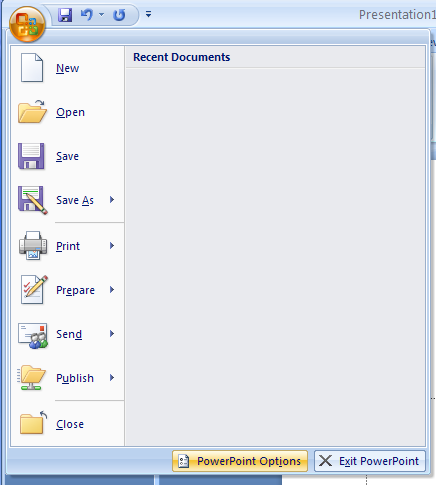
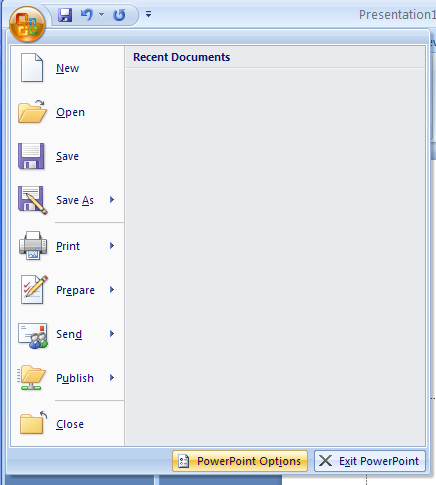
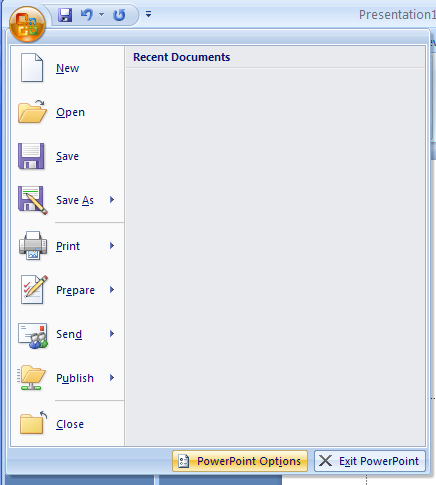
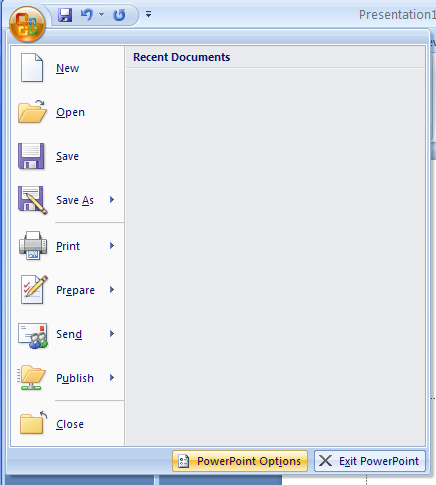
Click the Office button, and then click PowerPoint Options.
Click the Office button, and then click PowerPoint Options.
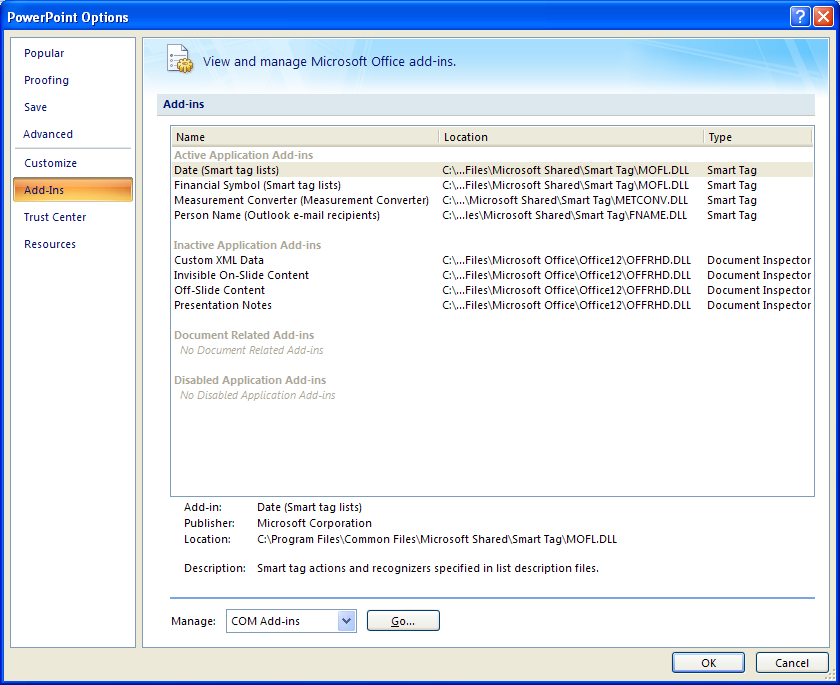
In the left pane, click Add-Ins. 
       The installed add-ins appear in the list by category.
The installed add-ins appear in the list by category.
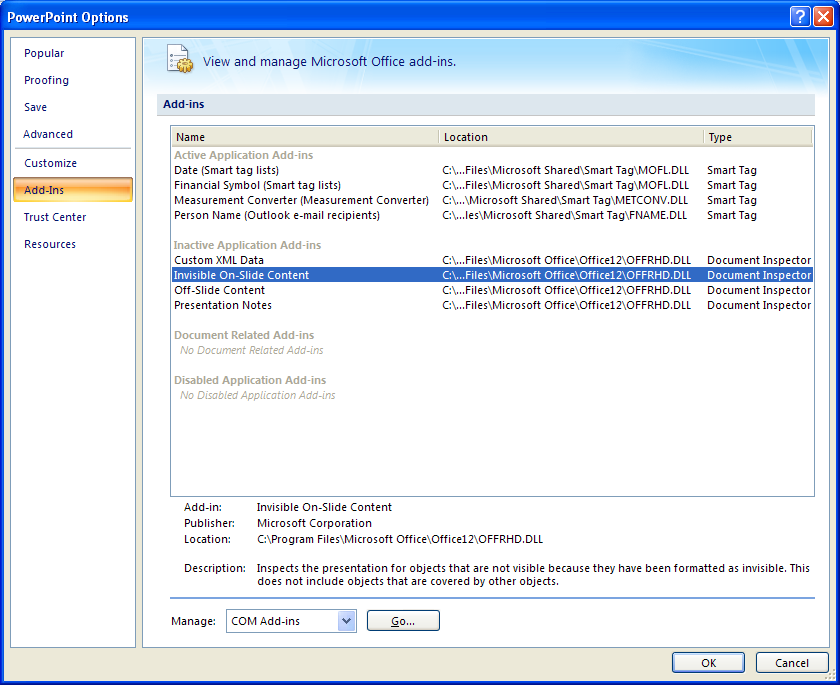
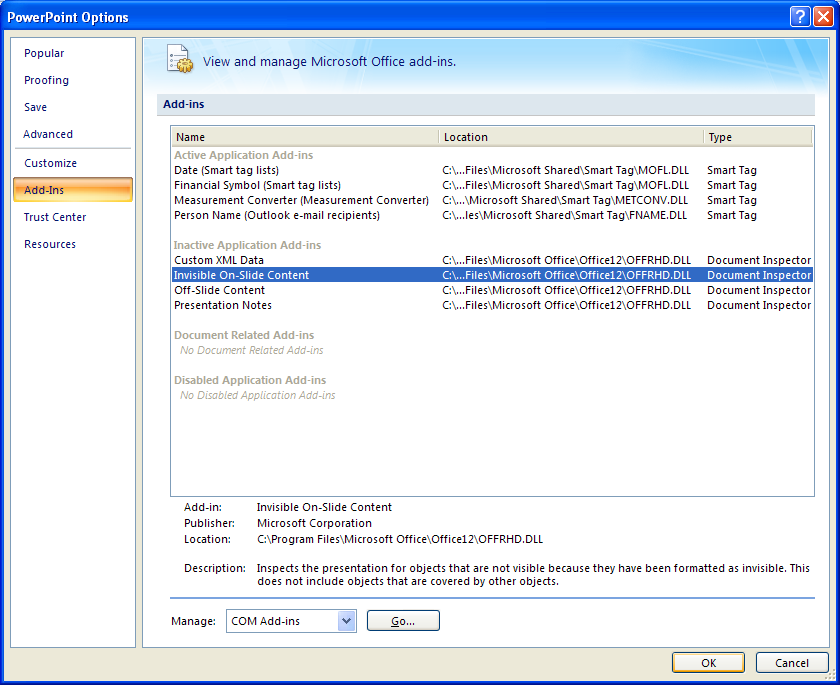
Click an add-in to display information about it.
Click an add-in to display information about it.
Click OK.
Click OK.
6. 2. Add ins
6. 2. 1. View Installed Add-insView Installed Add-ins
6. 2. 2. Manage Installed Add-insManage Installed Add-ins
6. 2. 3. Set Add-in Security OptionsSet Add-in Security Options
6. 2. 4. View Disabled Addin-ins ItemsView Disabled Addin-ins Items
www___.__ja__v__a__2_s___._c_om___ | Contact Us
Copyright 2003 - 08 Demo Source and Support. All rights reserved.
All other trademarks are property of their respective owners.