How to combine single- and two-column formats on the same page : Columns « Documentation « Microsoft Office Word 2007 Tutorial
Home
Microsoft Office Word 2007 Tutorial
1.Introduction
2.Editing
3.Style Formatting
4.Shape Picture WordArt SmartArt Clip Art
5.Documentation
6.Table
7.Chart
8.Controls ActiveX Macro
9.Mail Merge
10.Security
11.Collaboration
Microsoft Office Word 2007 Tutorial » Documentation » Columns 
5.2.2.How to combine single- and two-column formats on the same page
Position your cursor immediately after the paragraph mark.
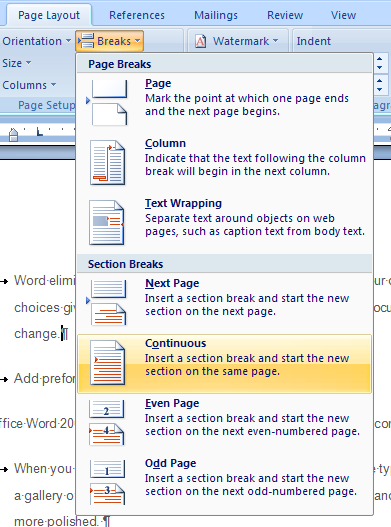
          Choose Page Layout then Insert Page and Section Breaks and Continuous.
Choose Page Layout then Insert Page and Section Breaks and Continuous.
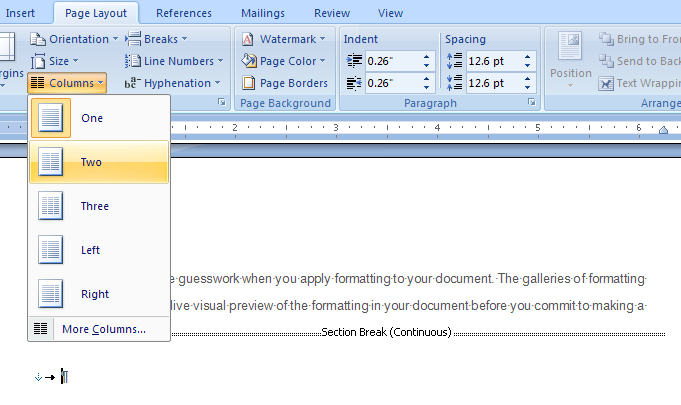
Choose Page Layout > Columns > Two.
Choose Page Layout > Columns > Two.
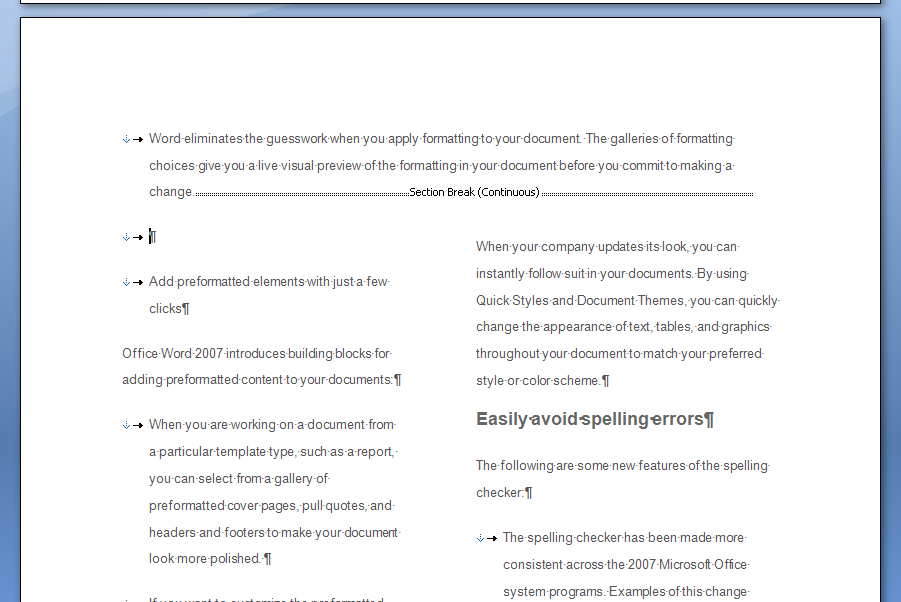
The page now has a single column of text at the top followed by two columns below the section break.
The page now has a single column of text at the top followed by two columns below the section break.
5.2.Columns
5.2.1.Create ColumnsCreate Columns
5.2.2.How to combine single- and two-column formats on the same page How to combine single- and two-column formats on the same page
5.2.3.Remove columnsRemove columns
5.2.4.Align text in a columnAlign text in a column
5.2.5.Modify ColumnsModify Columns
5.2.6.Insert a Column BreakInsert a Column Break
5.2.7.Delete a column breakDelete a column break
java2s.com  | Contact Us | Privacy Policy
Copyright 2009 - 12 Demo Source and Support. All rights reserved.
All other trademarks are property of their respective owners.