Adjust columns and rows by drag and drop : Cell Row Column « Table « Microsoft Office Word 2007 Tutorial
Microsoft Office Word 2007 Tutorial
1.
Introduction
2.
Editing
3.
Style Formatting
4.
Shape Picture WordArt SmartArt Clip Art
5.
Documentation
6.
Table
7.
Chart
8.
Controls ActiveX Macro
9.
Mail Merge
10.
Security
11.
Collaboration
Java
Java Tutorial
Java Source Code / Java Documentation
Java Open Source
Jar File Download
Java Articles
Java Products
Java by API
C# / C Sharp
C# / CSharp Tutorial
ASP.Net
JavaScript DHTML
JavaScript Tutorial
JavaScript Reference
HTML / CSS
HTML CSS Reference
C / ANSI-C
C Tutorial
C++
C++ Tutorial
PHP
Python
SQL Server / T-SQL
Oracle PL / SQL
Oracle PL/SQL Tutorial
PostgreSQL
SQL / MySQL
MySQL Tutorial
VB.Net
VB.Net Tutorial
Microsoft Office PowerPoint 2007 Tutorial
Microsoft Office Excel 2007 Tutorial
Microsoft Office Word 2007 Tutorial
»
Table
»
Cell Row Column
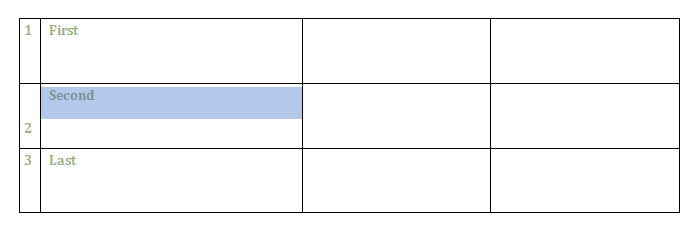
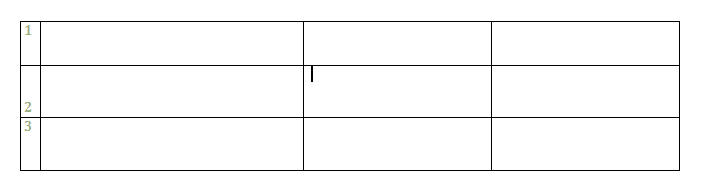
6. 4. 7. Adjust columns and rows by drag and drop
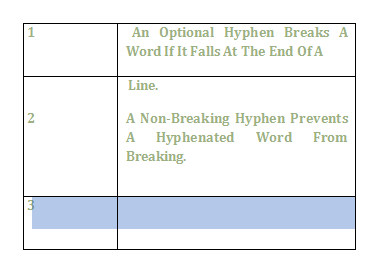
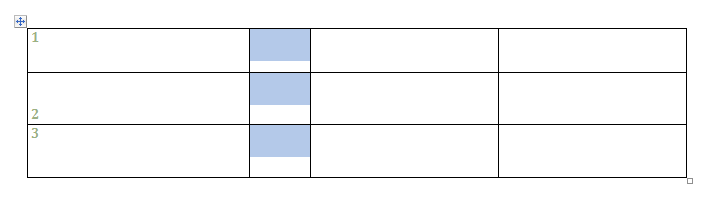
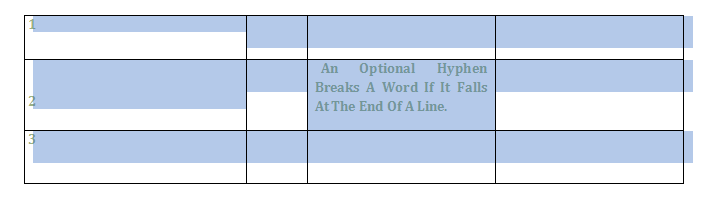
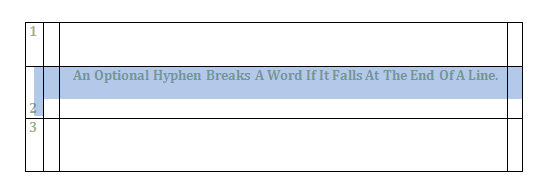
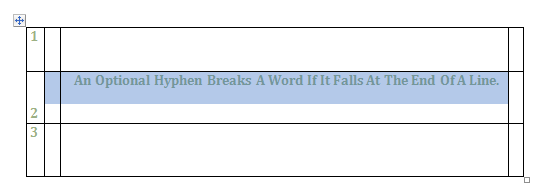
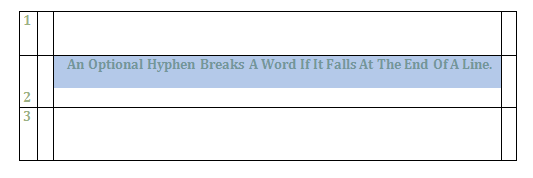
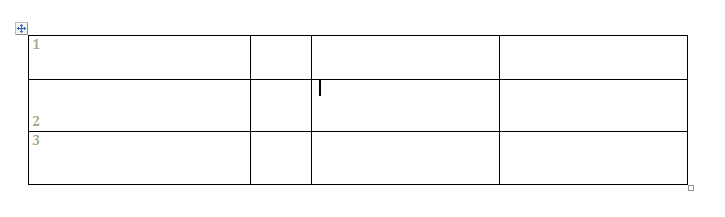
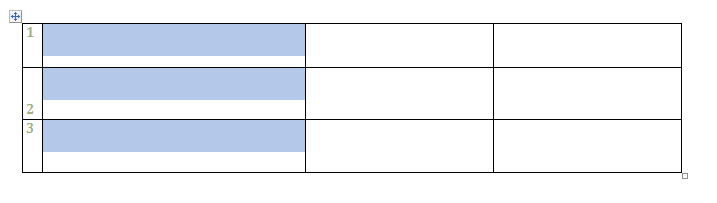
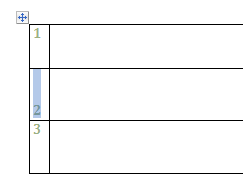
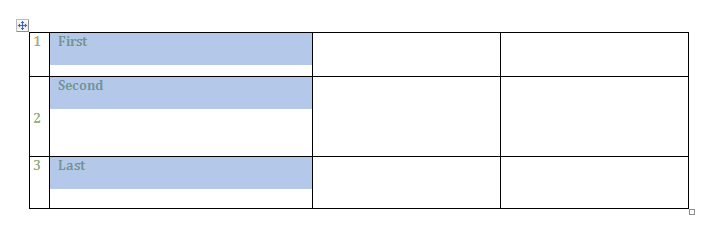
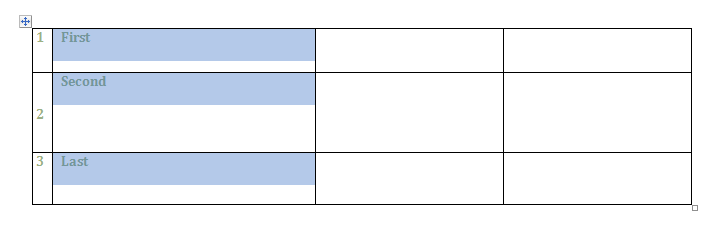
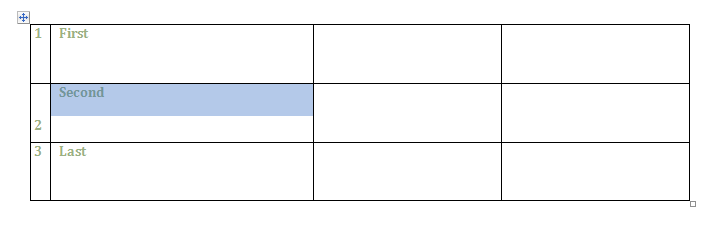
Position the pointer over the boundary of the column or row
Drag the boundary to a
new
location.
6. 4. Cell Row Column
6. 4. 1.
Insert Additional Rows or Columns
6. 4. 2.
Delete Table, Rows, Columns, or Cells
6. 4. 3.
Set column widths to fit text
6. 4. 4.
Evenly distribute columns and rows
6. 4. 5.
To merge two or more cells into a single cell
6. 4. 6.
To split a cell into multiple cells
6. 4. 7.
Adjust columns and rows by drag and drop
6. 4. 8.
Adjust Column Widths and Row Heights
6. 4. 9.
Change Text Direction Within Cells
6. 4. 10.
Align Text Within Cells
6. 4. 11.
To evenly distribute the height and width
6. 4. 12.
Change Cells Margins
6. 4. 13.
Change Cell Sizes
w__w_w_.___j_a__v___a___2__s___._c___om
|
Contact Us
Copyright 2003 - 08 Demo Source and Support. All rights reserved.
All other trademarks are property of their respective owners.