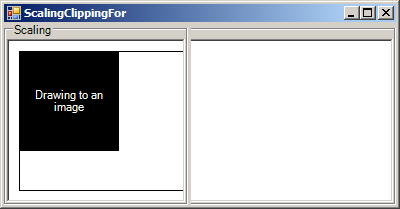
Imports System.Drawing
Imports System.Drawing.Drawing2D
Imports System.Windows.Forms
Imports System.Drawing.Imaging

public class ScalingClippingUnit
   public Shared Sub Main
        Application.Run(New ScalingClippingForm)
   End Sub
End class


Public Class ScalingClippingForm
    Inherits System.Windows.Forms.Form

#Region " Windows Form Designer generated code "

    Public Sub New()
        MyBase.New()

        'This call is required by the Windows Form Designer.
        InitializeComponent()

        'Add any initialization after the InitializeComponent() call
        Me.SetStyle(ControlStyles.ResizeRedraw, True)
        Me.SetStyle(ControlStyles.DoubleBuffer, True)
        Me.SetStyle(ControlStyles.AllPaintingInWmPaint, True)
    End Sub

    'Form overrides dispose to clean up the component list.
    Protected Overloads Overrides Sub Dispose(ByVal disposing As Boolean)
        If disposing Then
            If Not (components Is Nothing) Then
                components.Dispose()
            End If
        End If
        MyBase.Dispose(disposing)
    End Sub

    'Required by the Windows Form Designer
    Private components As System.ComponentModel.IContainer

    'NOTE: The following procedure is required by the Windows Form Designer
    'It can be modified using the Windows Form Designer.
    'Do not modify it using the code editor.
    Friend WithEvents splitter1 As System.Windows.Forms.Splitter
    Friend WithEvents groupBox1 As System.Windows.Forms.GroupBox
    Friend WithEvents panel1 As System.Windows.Forms.Panel
    Friend WithEvents groupBox2 As System.Windows.Forms.GroupBox
    Friend WithEvents panel2 As System.Windows.Forms.Panel
    <System.Diagnostics.DebuggerStepThrough()> Private Sub InitializeComponent()
        Me.splitter1 = New System.Windows.Forms.Splitter()
        Me.groupBox1 = New System.Windows.Forms.GroupBox()
        Me.panel1 = New System.Windows.Forms.Panel()
        Me.groupBox2 = New System.Windows.Forms.GroupBox()
        Me.panel2 = New System.Windows.Forms.Panel()
        Me.groupBox1.SuspendLayout()
        Me.groupBox2.SuspendLayout()
        Me.SuspendLayout()
        '
        'splitter1
        '
        Me.splitter1.Location = New System.Drawing.Point(184, 0)
        Me.splitter1.Name = "splitter1"
        Me.splitter1.Size = New System.Drawing.Size(3, 182)
        Me.splitter1.TabIndex = 4
        Me.splitter1.TabStop = False
        '
        'groupBox1
        '
        Me.groupBox1.Controls.AddRange(New System.Windows.Forms.Control() {Me.panel1})
        Me.groupBox1.Dock = System.Windows.Forms.DockStyle.Left
        Me.groupBox1.Name = "groupBox1"
        Me.groupBox1.Size = New System.Drawing.Size(184, 182)
        Me.groupBox1.TabIndex = 3
        Me.groupBox1.TabStop = False
        Me.groupBox1.Text = "Scaling"
        '
        'panel1
        '
        Me.panel1.BackColor = System.Drawing.Color.White
        Me.panel1.BorderStyle = System.Windows.Forms.BorderStyle.Fixed3D
        Me.panel1.Dock = System.Windows.Forms.DockStyle.Fill
        Me.panel1.Location = New System.Drawing.Point(3, 16)
        Me.panel1.Name = "panel1"
        Me.panel1.Size = New System.Drawing.Size(178, 163)
        Me.panel1.TabIndex = 0
        '
        'groupBox2
        '
        Me.groupBox2.Controls.AddRange(New System.Windows.Forms.Control() {Me.panel2})
        Me.groupBox2.Dock = System.Windows.Forms.DockStyle.Fill
        Me.groupBox2.Name = "groupBox2"
        Me.groupBox2.Size = New System.Drawing.Size(392, 182)
        Me.groupBox2.TabIndex = 5
        Me.groupBox2.TabStop = False
        Me.groupBox2.Text = "Clipping"
        '
        'panel2
        '
        Me.panel2.BackColor = System.Drawing.Color.White
        Me.panel2.BorderStyle = System.Windows.Forms.BorderStyle.Fixed3D
        Me.panel2.Dock = System.Windows.Forms.DockStyle.Fill
        Me.panel2.Location = New System.Drawing.Point(3, 16)
        Me.panel2.Name = "panel2"
        Me.panel2.Size = New System.Drawing.Size(386, 163)
        Me.panel2.TabIndex = 0
        '
        'ScalingClippingForm
        '
        Me.AutoScaleBaseSize = New System.Drawing.Size(5, 13)
        Me.ClientSize = New System.Drawing.Size(392, 182)
        Me.Controls.AddRange(New System.Windows.Forms.Control() {Me.splitter1, Me.groupBox1, Me.groupBox2})
        Me.Name = "ScalingClippingForm"
        Me.Text = "ScalingClippingFor"
        Me.groupBox1.ResumeLayout(False)
        Me.groupBox2.ResumeLayout(False)
        Me.ResumeLayout(False)

    End Sub

#End Region


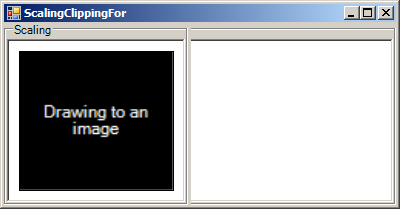
    Private Sub panel1_Paint(ByVal sender As Object, ByVal e As PaintEventArgs) Handles panel1.Paint
        Dim g As Graphics = e.Graphics
        Dim bmp As Bitmap = New Bitmap("yourfile.jpg")
        Dim destRect As Rectangle = New Rectangle(10, 10, Me.panel2.ClientRectangle.Width - 20, Me.panel2.ClientRectangle.Height - 20)
        Dim srcRect As Rectangle = New Rectangle(0, 0, destRect.Width, destRect.Height)
        g.DrawImage(bmp, destRect, srcRect, g.PageUnit)
        g.DrawRectangle(Pens.Black, destRect)
    End Sub

End Class