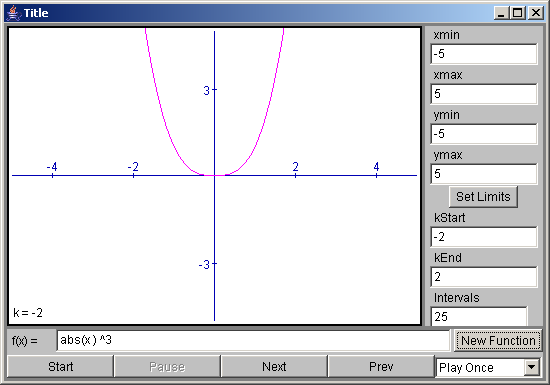
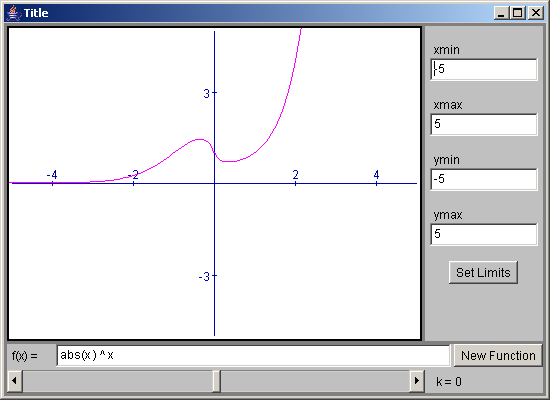
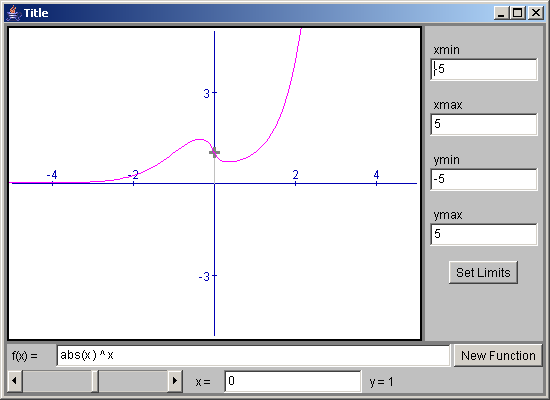
Input the function and draw the curve
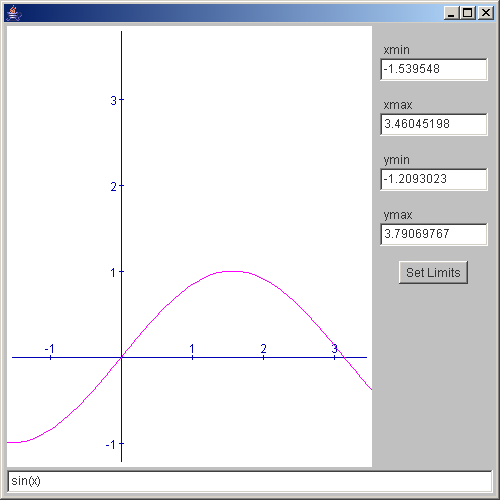
/*************************************************************************
*                                                                        *
*  This source code file, and compiled classes derived from it, can      *
*  be used and distributed without restriction, including for commercial *
*  use.  (Attribution is not required but is appreciated.)               *
*                                                                        *
*   David J. Eck                                                         *
*   Department of Mathematics and Computer Science                       *
*   Hobart and William Smith Colleges                                    *
*   Geneva, New York 14456,   USA                                        *
*   Email: eck@hws.edu          WWW: http://math.hws.edu/eck/            *
*                                                                        *
*************************************************************************/


import java.awt.*;
import edu.hws.jcm.data.*;
import edu.hws.jcm.draw.*;
import edu.hws.jcm.awt.*;

public class GraphApplet1 extends java.applet.Applet {

   public void init() {

      Parser parser = new Parser();    // The Parser will take the user's input
                                       //   and turn it into an Expression.  By
                                       //   default, a Parser knows about the
                                       //   constants pi and e, the basic arithmetic
                                       //   operations + - * / ^ (where ^ is
                                       //   exponentiation), standard functions
                                       //   (sin, cos, tan, sec, csc, cot, sqrt,
                                       //   cubert, abs, ln, log2, log10, exp,
                                       //   trunc, round, floor, ceiling, arcsin,
                                       //   arccos, arctan).  There is also a
                                       //   conditional "?" operator in the style
                                       //   of Java and C++.

      Variable x = new Variable("x");  // For the parser to know about the variable x,
      parser.add(x);                   //   that variable must be created and added
                                       //   to the parser.

      DisplayCanvas canvas = new DisplayCanvas();
         // A DisplayCanvas is the fundamental JCM class for displaying
         // graphical items such as axes and graphs.

      canvas.setUseOffscreenCanvas(false);  // By default, a DisplayCanvas uses
                                            //   "double buffering", which allows for
                                            //   smooth animation.  However, it does
                                            //   use extra memory, so I turn it off
                                            //   in this simple applet.  You might notice
                                            //   that the image flickers a bit when the
                                            //   applet is redrawn.

      canvas.setHandleMouseZooms(true);  // This tells the canvas to let the user
                                         //   zoom in and out by clicking, shift-clicking,
                                         //   and click-and-dragging on the canvas.

      LimitControlPanel limits = new LimitControlPanel();
         // A limit control panel can control the x- and y-limits on a DisplayCanvas.
         //   In the applet, the limit control panel is the gray area containing the
         //   input boxes for xmin, xmax, ymin, and ymax.  It also contains a
         //   "Set Limits" button (and can contain other buttons if you want).  The
         //   "Set Limits" button is a little redundant because pressing return
         //   in any of the input boxes will accomplish the same thing.  However, it
         //   has the advantage of giving the user something obvious to do to
         //   set the limits.

      limits.addCoords(canvas);  // Tells the LimitControlPanel to control the
                                 //   x- and y-limits on this canvas.  The limits
                                 //   on the canvas and the values in the input
                                 //   boxes are synchronized.  (Try it by clicking
                                 //   on the graph.)


      ExpressionInput input = new ExpressionInput("sin(x)+2*cos(3*x)", parser);
         // An ExpressionInput is a text-input box where the user can enter
         //    an expression.  The string "sin(x)+2*cos(3*x)" provides the initial
         //    contents for the box.  The parser that is provided as the second
         //    arguments knows about the variable named "x", which makes it
         //    possible to use "x" in the expression.

      Function func = input.getFunction(x);  // To graph, I need a Function, not
                                             //    not an expression.  input.getFunction(x)
                                             //    gets the contents of the ExpressionInput,
                                             //    input, considered as a function of the
                                             //    variable x.

      Graph1D graph = new Graph1D(func);  // This represents a graph of the function, func.
                                          //   It will be added to the DisplayCanvas,
                                          //   which will make it appear on the screen.

      JCMPanel main = new JCMPanel();     // The interface for this applet is constructed
                                          //   entirely from JCMPanels.  This makes much
                                          //   of the JCM setup automatic.  This constructor
                                          //   makes a JCMPanel that uses a BorderLayout.

      main.add(canvas, BorderLayout.CENTER);  // Add the DisplayCanvas to the panel.
      main.add(input, BorderLayout.SOUTH);    // Add the ExprssionInput.
      main.add(limits, BorderLayout.EAST);    // Add the LimitControlPanel.

      main.setInsetGap(3);  // This leaves a gap of 3 pixels around the edges of the
                            //    panel, where the gray background shows through.

      setLayout(new BorderLayout());   // Set up the Applet itself.
      add(main, BorderLayout.CENTER);
      setBackground(Color.lightGray);

      canvas.add( new Axes() );  // Add a set of Axes to the DisplayCanvas.  The labels
                                 //   on the applet are automatically adjusted when
                                 //   the limits on the canvas changes.

      canvas.add(graph);         // Add the graph to the canvas.  It will be redrawn
                                 //   whenever necessary.

      Controller controller = main.getController();
          // A Controller is what makes things happen in a JCM applet.  The
          // JCMPanel, main, has a controller that recomputes the JCM components
          // in the Panel.

      controller.setErrorReporter(canvas);  // Errors in the user's input need to
                                            //   be reported somehow.  A Controller can
                                            //   have an ErrorReporter for this purpose.
                                            //   Currently, the alternatives are to use
                                            //   a canvas as an error reporter or to
                                            //   use a "MessagePopup".  To see an error
                                            //   message in the applet, enter any expression
                                            //   with a syntax error and press return.
                                            //   Note that the blinking input cursor moves
                                            //   to the point in the expression where the
                                            //   error was discovered.

      limits.setErrorReporter(canvas);   // A LimitControlPanel also needs a place to
                                         //   report errors in the user's input.

      main.gatherInputs();   // The JCMPanel must be told to respond to user inputs.
                             //    The gatherInputs() method is an easy way to do this,
                             //    in many cases.  In this applet, since there is only one
                             //    input, this is equivalent to the single command
                             //    "input.setOnUserAction(controller)," which tells the
                             //    input object to notify the controller when the user
                             //    presses return in the input box.  (Note that input boxes
                             //    in a LimitControlPanel are taken care of automatically.
                             //    They don't need to notify a controller.  Also note that
                             //    I couldn't use the gatherInputs(controller) method in
                             //    the previous ArithmeticApplet, since gatherInputs()
                             //    calls the setOnUserAction() method of an input box, but in the
                             //    ArithmeticApplet, I wanted to call setOnTextChange().  The
                             //    difference is that with setOnUserAction(), the controller is
                             //    notified only when the user presses return in the input box
                             //    while with setOnTextChange(), the controller is notified
                             //    each time the text in the input box changes.)

   } // end init()
      public static void main(String[] a){
         javax.swing.JFrame f = new javax.swing.JFrame();
         java.applet.Applet app = new GraphApplet1();
         app.init();

         f.getContentPane().add (app);

         f.pack();
         f.setSize (new Dimension (500, 500));
         f.setVisible(true);
      }

} // end class SimpleGraph1
 jcm1-source.zip( 532 k)
Related examples in the same category