A frame that can easily support internal frame dialogs : Dialog « Swing JFC « Java

Java
1. 2D Graphics GUI
2. 3D
3. Advanced Graphics
4. Ant
5. Apache Common
6. Chart
7. Collections Data Structure
8. Database SQL JDBC
9. Design Pattern
10. Development Class
11. Email
12. Event
13. File Input Output
14. Game
15. Hibernate
16. J2EE
17. J2ME
18. JDK 6
19. JSP
20. JSTL
21. Language Basics
22. Network Protocol
23. PDF RTF
24. Regular Expressions
25. Security
26. Servlets
27. Spring
28. Swing Components
29. Swing JFC
30. SWT JFace Eclipse
31. Threads
32. Tiny Application
33. Velocity
34. Web Services SOA
35. XML
Microsoft Office Word 2007 Tutorial
Java Tutorial
Java Source Code / Java Documentation
Java Open Source
Jar File Download
Java Articles
Java Products
Java by API
C# / C Sharp
C# / CSharp Tutorial
ASP.Net
JavaScript DHTML
JavaScript Tutorial
JavaScript Reference
HTML / CSS
HTML CSS Reference
C / ANSI-C
C Tutorial
C++
C++ Tutorial
PHP
Python
SQL Server / T-SQL
Oracle PL / SQL
Oracle PL/SQL Tutorial
PostgreSQL
SQL / MySQL
MySQL Tutorial
VB.Net
VB.Net Tutorial
Java » Swing JFC » DialogScreenshots 
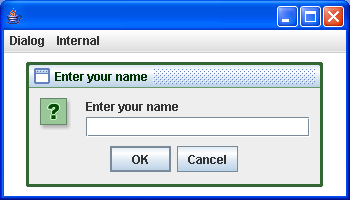
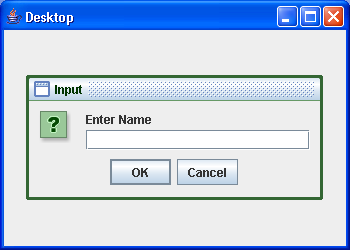
A frame that can easily support internal frame dialogs

/*
Java Swing, 2nd Edition
By Marc Loy, Robert Eckstein, Dave Wood, James Elliott, Brian Cole
ISBN: 0-596-00408-7
Publisher: O'Reilly 
*/
// DialogDesktop.java
//A frame that can easily support internal frame dialogs.
//

import java.awt.Dimension;
import java.awt.GridBagLayout;
import java.awt.event.ActionEvent;
import java.awt.event.ActionListener;
import java.awt.event.ComponentAdapter;
import java.awt.event.ComponentEvent;

import javax.swing.JButton;
import javax.swing.JDesktopPane;
import javax.swing.JFrame;
import javax.swing.JOptionPane;
import javax.swing.JPanel;

public class DialogDesktop extends JFrame {

  public DialogDesktop(String title) {
    super(title);
    setDefaultCloseOperation(EXIT_ON_CLOSE);

    final JDesktopPane desk = new JDesktopPane();
    setContentPane(desk);

    // Create our "real" application container; use any layout manager we
    // want.
    final JPanel p = new JPanel(new GridBagLayout());

    // Listen for desktop resize events so we can resize p. This will ensure
    // that
    // our container always fills the entire desktop.
    desk.addComponentListener(new ComponentAdapter() {
      public void componentResized(ComponentEvent ev) {
        Dimension deskSize = desk.getSize();
        p.setBounds(00, deskSize.width, deskSize.height);
        p.validate();
      }
    });

    // Add our application panel to the desktop. Any layer below the
    // MODAL_LAYER
    // (where the dialogs will appear) is fine. We'll just use the default
    // in
    // this example.
    desk.add(p);

    // Fill out our app with a few buttons that create dialogs
    JButton input = new JButton("Input");
    JButton confirm = new JButton("Confirm");
    JButton message = new JButton("Message");
    p.add(input);
    p.add(confirm);
    p.add(message);

    input.addActionListener(new ActionListener() {
      public void actionPerformed(ActionEvent ev) {
        JOptionPane.showInternalInputDialog(desk, "Enter Name");
      }
    });

    confirm.addActionListener(new ActionListener() {
      public void actionPerformed(ActionEvent ev) {
        JOptionPane.showInternalConfirmDialog(desk, "Is this OK?");
      }
    });

    message.addActionListener(new ActionListener() {
      public void actionPerformed(ActionEvent ev) {
        JOptionPane.showInternalMessageDialog(desk, "The End");
      }
    });
  }

  // A simple test program
  public static void main(String[] args) {
    DialogDesktop td = new DialogDesktop("Desktop");
    td.setSize(350250);
    td.setVisible(true);
  }
}


Related examples in the same category
1. Creating and using Dialog BoxesCreating and using Dialog Boxes
2. Dialog boxes and creating your own componentsDialog boxes and creating your own components
3. An example of using the JOptionPane with a custom list of options in anAn example of using the JOptionPane with a custom list of options in an
4. See the differences between various types of option panesSee the differences between various types of option panes
5. Vote DialogVote Dialog
6. Create simple about dialogCreate simple about dialog
7. Dialog separatorDialog separator
8. Message dialogMessage dialog
9. Error message dialogError message dialog
10. Information dialog with customized logoInformation dialog with customized logo
11. Input dialog with user-defined logoInput dialog with user-defined logo
12. Comfirmation dialogComfirmation dialog
13. Default button for dialog: press Enter to activateDefault button for dialog: press Enter to activate
14. Simple dialog for asking a yes no questionSimple dialog for asking a yes no question
15. Class to Prompt the User for an ID and Password
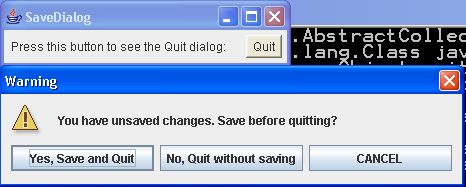
16. Simple Save Dialog demoSimple Save Dialog demo
17. Demonstrate JOptionPaneDemonstrate JOptionPane
18. Create Color Sample PopupCreate Color Sample Popup
19. Simple Input DialogSimple Input Dialog
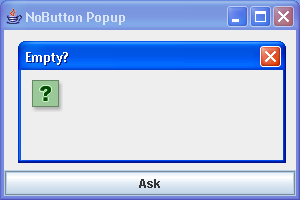
20. No button dialogNo button dialog
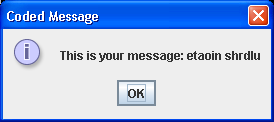
21. Message Dialog demo Message Dialog demo
22. Dialog with Escape KeyDialog with Escape Key
w_w___w___.___j_a_v__a_2_s.__c_om_ | Contact Us
Copyright 2003 - 08 Demo Source and Support. All rights reserved.
All other trademarks are property of their respective owners.