Save an XML Document and Apply a Transformation : XML Document « Editing « Microsoft Office Word 2007 Tutorial
Microsoft Office Word 2007 Tutorial
1. Introduction
2. Editing
3. Style Formatting
4. Shape Picture WordArt SmartArt Clip Art
5. Documentation
6. Table
7. Chart
8. Controls ActiveX Macro
9. Mail Merge
10. Security
11. Collaboration
Java
Java Tutorial
Java Source Code / Java Documentation
Java Open Source
Jar File Download
Java Articles
Java Products
Java by API
C# / C Sharp
C# / CSharp Tutorial
ASP.Net
JavaScript DHTML
JavaScript Tutorial
JavaScript Reference
HTML / CSS
HTML CSS Reference
C / ANSI-C
C Tutorial
C++
C++ Tutorial
PHP
Python
SQL Server / T-SQL
Oracle PL / SQL
Oracle PL/SQL Tutorial
PostgreSQL
SQL / MySQL
MySQL Tutorial
VB.Net
VB.Net Tutorial
Microsoft Office PowerPoint 2007 Tutorial
Microsoft Office Excel 2007 Tutorial
Microsoft Office Word 2007 Tutorial » Editing » XML Document 
2. 20. 5. Save an XML Document and Apply a Transformation
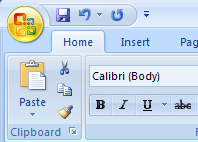
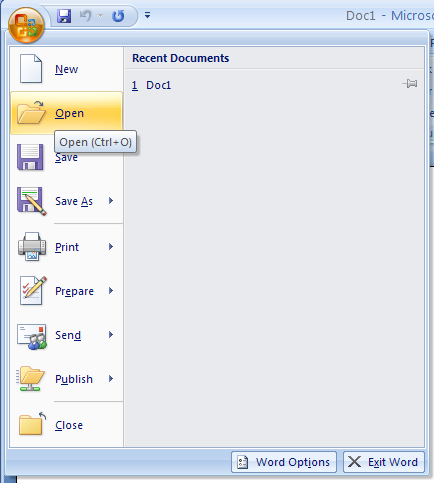
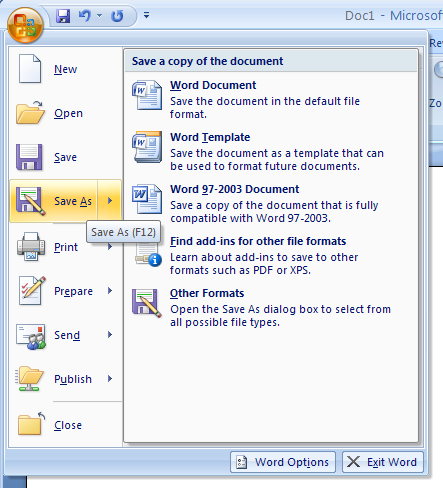
Click the Office menu. Then click Save As.
Then click Save As.
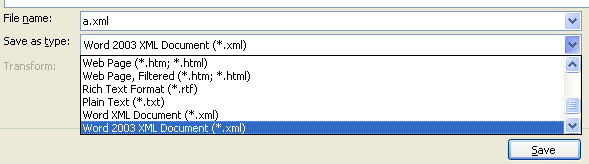
Click the Save as type list arrow. 
          Then click Word XML Document or Word 2003 XML Document.
Then click Word XML Document or Word 2003 XML Document.
Select the Apply transform check box. Then click Transform
Then click Transform
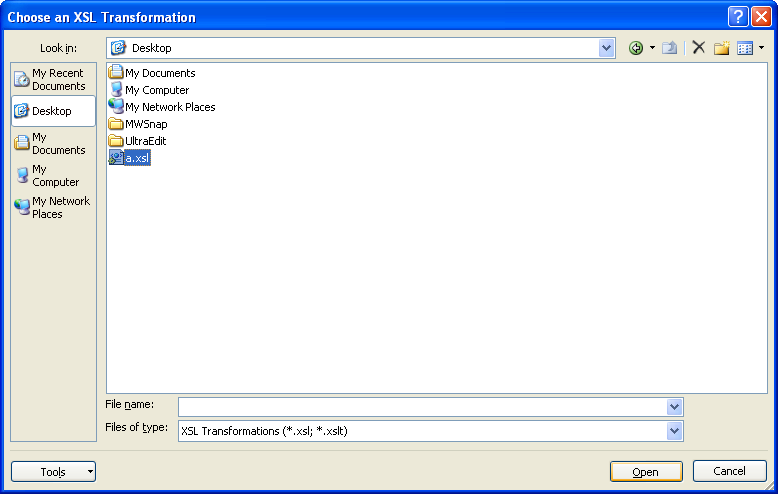
Then select a transformation file (XSLT). Then click Open.
Then select a transformation file (XSLT)
Type a name for the XML document. Click Save.
2. 20. XML Document
2. 20. 1. Attach or Separate a SchemaAttach or Separate a Schema
2. 20. 2. Change XML OptionsChange XML Options
2. 20. 3. Open, View, and Modify an XML Data FileOpen, View, and Modify an XML Data File
2. 20. 4. Remove an XML tag quicklyRemove an XML tag quickly
2. 20. 5. Save an XML Document and Apply a TransformationSave an XML Document and Apply a Transformation
2. 20. 6. Insert XML dataInsert XML data
w__w__w.___j___a___v__a_2s.__c_om_ | Contact Us
Copyright 2003 - 08 Demo Source and Support. All rights reserved.
All other trademarks are property of their respective owners.