Reset chart formatting : Chart « Chart Table « Microsoft Office PowerPoint 2007 Tutorial
| 4.1.Chart | ||||
| 4.1.1. | Insert and Create a Chart | 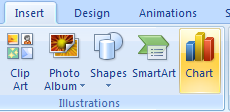 | ||
| 4.1.2. | Open and View Chart Data | 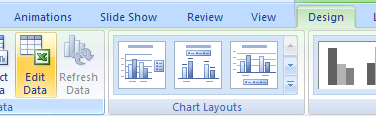 | ||
| 4.1.3. | Create a chart from a slide layout | 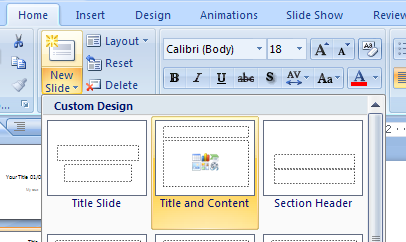 | ||
| 4.1.4. | Change a Chart Type |  | ||
| 4.1.5. | Reset chart formatting |  | ||
| 4.1.6. | Apply a Chart Layout | 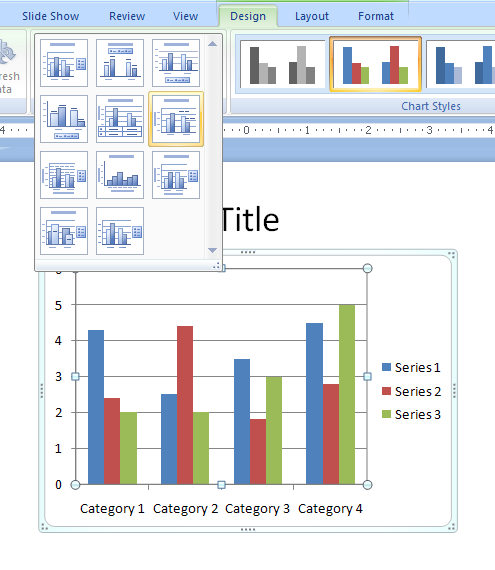 | ||
| 4.1.7. | Apply a Chart Style | 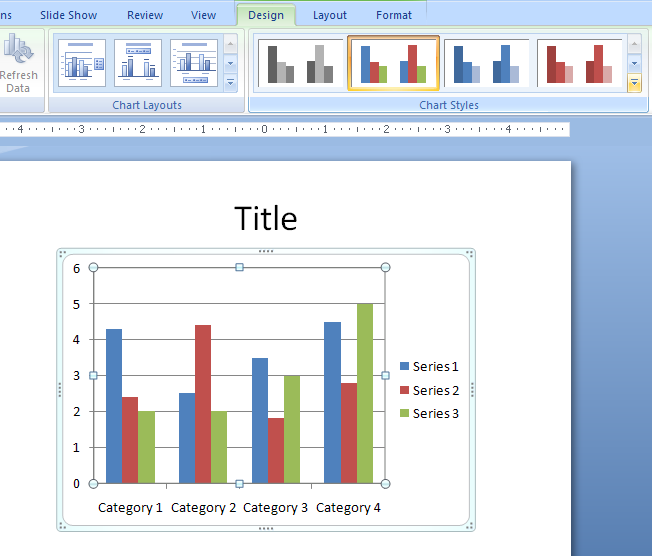 | ||
| 4.1.8. | Select a Chart Object | 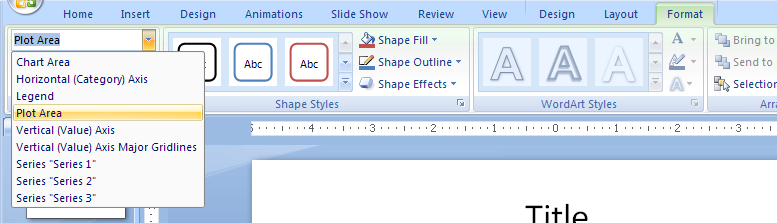 | ||
| 4.1.9. | Change a Chart Object Style |  | ||
| 4.1.10. | Apply a Shape Styles to a Chart Object | 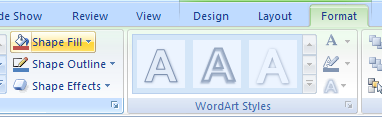 | ||
| 4.1.11. | Change Chart Labels | 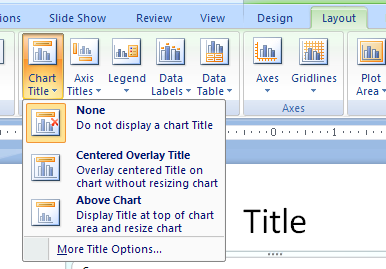 | ||
| 4.1.12. | Insert a picture into a chart | 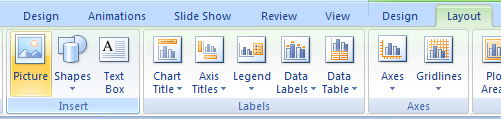 | ||
| 4.1.13. | Insert a shape into a chart | 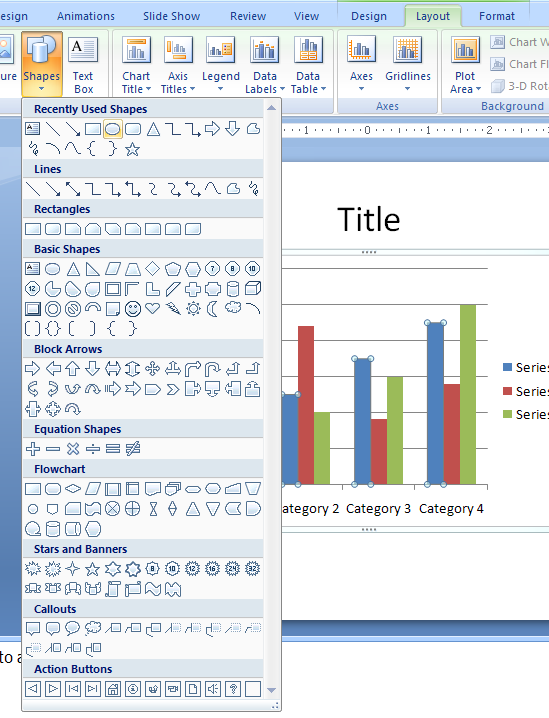 | ||
| 4.1.14. | Change Chart Axis |  | ||
| 4.1.15. | Change Chart Background |  | ||
| 4.1.16. | Create a Custom Chart Template |  | ||
| 4.1.17. | Apply a Chart Template | 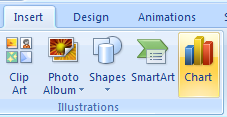 | ||
| 4.1.18. | Animate Chart Elements | 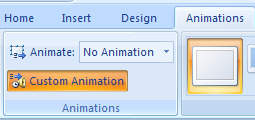 | ||