Pen.ScaleTransform : Pen « 2D Graphics « VB.Net Tutorial

VB.Net Tutorial
1. Language Basics
2. Data Type
3. Operator
4. Statements
5. Date Time
6. Class Module
7. Development
8. Collections
9. Generics
10. Attributes
11. Event
12. Stream File
13. GUI
14. GUI Applications
15. 2D Graphics
16. I18N Internationlization
17. Reflection
18. Regular Expressions
19. Security
20. Socket Network
21. Thread
22. Windows
23. XML
24. Database ADO.net
25. Design Patterns
Microsoft Office Word 2007 Tutorial
Java
Java Tutorial
Java Source Code / Java Documentation
Java Open Source
Jar File Download
Java Articles
Java Products
Java by API
C# / C Sharp
C# / CSharp Tutorial
ASP.Net
JavaScript DHTML
JavaScript Tutorial
JavaScript Reference
HTML / CSS
HTML CSS Reference
C / ANSI-C
C Tutorial
C++
C++ Tutorial
PHP
Python
SQL Server / T-SQL
Oracle PL / SQL
Oracle PL/SQL Tutorial
PostgreSQL
SQL / MySQL
MySQL Tutorial
VB.Net
VB.Net Tutorial » 2D Graphics » Pen 
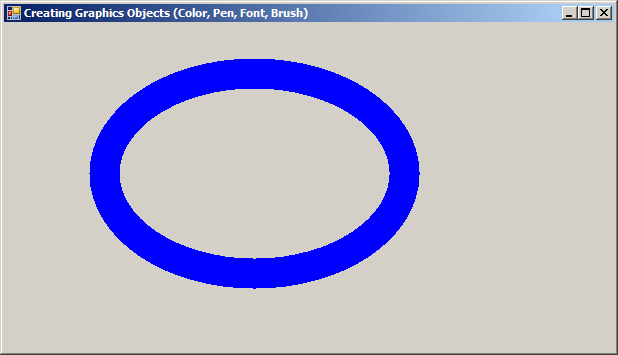
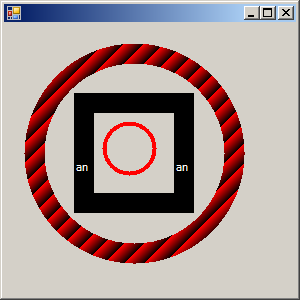
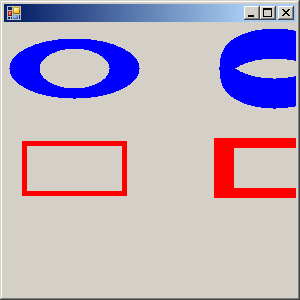
15. 59. 13. Pen.ScaleTransform
Pen.ScaleTransform


Imports System.Drawing
Imports System.Drawing.Drawing2D
Imports System.Windows.Forms

public class ScaleTransformPen
   public Shared Sub Main
        Application.Run(New Form1)
   End Sub
End class

public class Form1
  Inherits System.Windows.Forms.Form

  Protected Overrides Sub OnPaint(ByVal e As PaintEventArgs)
        Dim As Graphics = Me.CreateGraphics()
        g.Clear(Me.BackColor)

        Dim bluePen As New Pen(Color.Blue, 10)
        Dim redPen As New Pen(Color.Red, 5)

        bluePen.ScaleTransform(31)
        g.DrawEllipse(bluePen, 202010050)
        g.DrawRectangle(redPen, 2012010050)
        bluePen.RotateTransform(90, MatrixOrder.Append)
        redPen.ScaleTransform(42, MatrixOrder.Append)
        g.DrawEllipse(bluePen, 2202010050)
        g.DrawRectangle(redPen, 22012010050)

        redPen.Dispose()
        bluePen.Dispose()
        g.Dispose()


  End Sub

  Public Sub New()
   
    MyBase.New()
    Me.AutoScaleBaseSize = New System.Drawing.Size(513)
    Me.ClientSize = New System.Drawing.Size(292273)
    Me.StartPosition = System.Windows.Forms.FormStartPosition.CenterScreen

  End Sub

End Class
        
15. 59. Pen
15. 59. 1. Create Pen from ColorCreate Pen from Color
15. 59. 2. Create Pen with Color and WidthCreate Pen with Color and Width
15. 59. 3. Create Pen from SolidBrushCreate Pen from SolidBrush
15. 59. 4. Create Pen from TextureBrush
15. 59. 5. Create Pen from LinearGradientBrushCreate Pen from LinearGradientBrush
15. 59. 6. Create Pen from HatchBrushCreate Pen from HatchBrush
15. 59. 7. One pixel penOne pixel pen
15. 59. 8. Pen Style: Dot, Dot Dot, Dot Dash, Dash DotPen Style: Dot, Dot Dot, Dot Dash, Dash Dot
15. 59. 9. Set Pen DashStyle, StartCap, EndCap, DashOffsetSet Pen DashStyle, StartCap, EndCap, DashOffset
15. 59. 10. Draw thick rectangle outline in redDraw thick rectangle outline in red
15. 59. 11. Set Pen width and colorSet Pen width and color
15. 59. 12. Set Pen DashCap and DashStyleSet Pen DashCap and DashStyle
15. 59. 13. Pen.ScaleTransformPen.ScaleTransform
15. 59. 14. Pen.SetLineCapPen.SetLineCap
15. 59. 15. PenAlignment.Inset, PenAlignment.Outset, PenAlignment.LeftPenAlignment.Inset, PenAlignment.Outset, PenAlignment.Left
15. 59. 16. Set Line StrokeCapsSet Line StrokeCaps
15. 59. 17. Adjustable RowCapAdjustable RowCap
15. 59. 18. PixelOffsetMode
w__w_w._j___a_va2__s_.com__ | Contact Us
Copyright 2003 - 08 Demo Source and Support. All rights reserved.
All other trademarks are property of their respective owners.