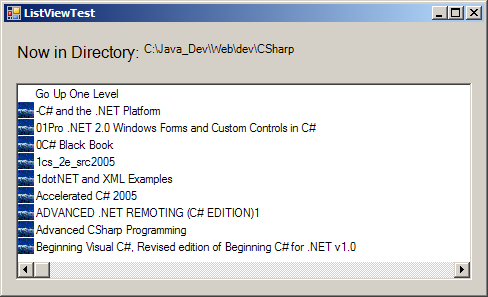
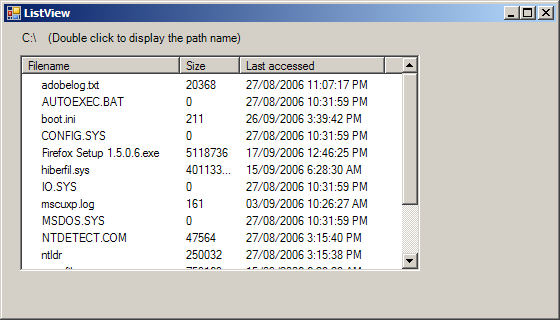
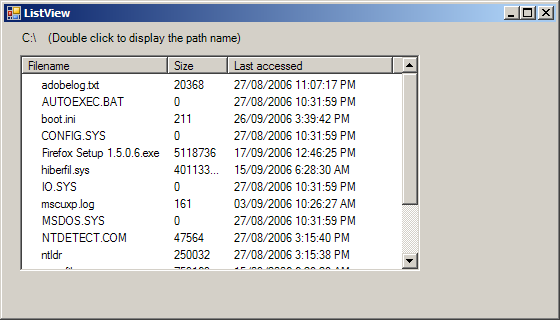
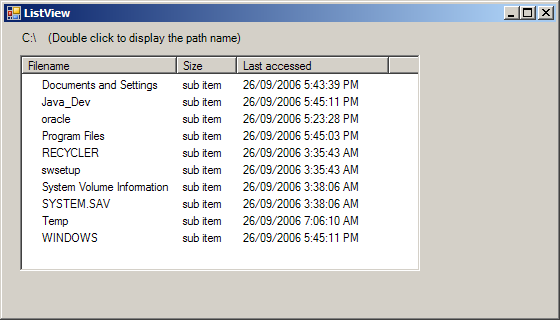
Folder Browser based on ListView
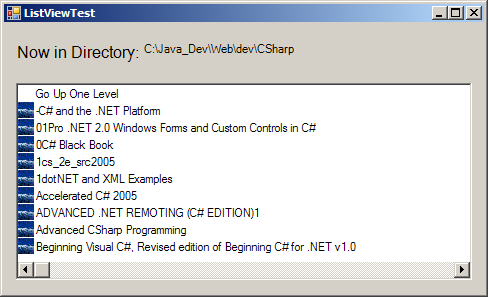
using System;
using System.Collections.Generic;
using System.ComponentModel;
using System.Data;
using System.Drawing;
using System.Text;
using System.Windows.Forms;
using System.IO;

public class Form1 : Form
{
      private System.Windows.Forms.ListView browserListView;
      private System.Windows.Forms.Label currentLabel;
      private System.Windows.Forms.Label displayLabel;
      private System.Windows.Forms.ImageList fileFolder;

      string currentDirectory = Directory.GetCurrentDirectory();

  public Form1() {
        InitializeComponent();
        Image folderImage = Image.FromFile("winter.jpg" );
        Image fileImage = Image.FromFile("winter.jpg" );

        fileFolder.Images.Add( folderImage );
        fileFolder.Images.Add( fileImage );

        LoadFilesInDirectory( currentDirectory );
        displayLabel.Text = currentDirectory;
  }

    private void browserListView_Click( object sender, EventArgs e )
    {
      if ( browserListView.SelectedItems.Count != 0 )
      {
         if ( browserListView.Items[0].Selected )
         {
            DirectoryInfo directoryObject = new DirectoryInfo( currentDirectory );

            if ( directoryObject.Parent != null )
               LoadFilesInDirectory( directoryObject.Parent.FullName );
         }else {
            string chosen = browserListView.SelectedItems[ 0 ].Text;
            if ( Directory.Exists( currentDirectory + @"\" + chosen ) )
            {
               if ( currentDirectory == @"C:\" )
                  LoadFilesInDirectory( currentDirectory + chosen );
               else
                  LoadFilesInDirectory(currentDirectory + @"\" + chosen );
            }
         }
         displayLabel.Text = currentDirectory;
      }
   }
   public void LoadFilesInDirectory( string currentDirectoryValue )
   {
      try
      {
         browserListView.Items.Clear();
         browserListView.Items.Add( "Go Up One Level" );

         currentDirectory = currentDirectoryValue;
         DirectoryInfo newCurrentDirectory = new DirectoryInfo( currentDirectory );

         DirectoryInfo[] directoryArray = newCurrentDirectory.GetDirectories();
         FileInfo[] fileArray = newCurrentDirectory.GetFiles();

         foreach ( DirectoryInfo dir in directoryArray )
         {
            ListViewItem newDirectoryItem = browserListView.Items.Add( dir.Name );
            newDirectoryItem.ImageIndex = 0;
         }

         foreach ( FileInfo file in fileArray )
         {
            ListViewItem newFileItem = browserListView.Items.Add( file.Name );
            newFileItem.ImageIndex = 1;
         }
      } catch ( UnauthorizedAccessException ) {
         Console.WriteLine( "Unauthorized Access Exception");
      }
   }
      private void InitializeComponent()
      {
         this.browserListView = new System.Windows.Forms.ListView();
         this.fileFolder = new System.Windows.Forms.ImageList(new System.ComponentModel.Container());
         this.currentLabel = new System.Windows.Forms.Label();
         this.displayLabel = new System.Windows.Forms.Label();
         this.SuspendLayout();
         //
         // browserListView
         //
         this.browserListView.Location = new System.Drawing.Point(12, 60);
         this.browserListView.Name = "browserListView";
         this.browserListView.Size = new System.Drawing.Size(456, 197);
         this.browserListView.SmallImageList = this.fileFolder;
         this.browserListView.TabIndex = 0;
         this.browserListView.View = System.Windows.Forms.View.List;
         this.browserListView.Click += new System.EventHandler(this.browserListView_Click);
         //
         // fileFolder
         //
         this.fileFolder.ColorDepth = System.Windows.Forms.ColorDepth.Depth8Bit;
         this.fileFolder.ImageSize = new System.Drawing.Size(16, 16);
         this.fileFolder.TransparentColor = System.Drawing.Color.Transparent;
         //
         // currentLabel
         //
         this.currentLabel.AutoSize = true;
         this.currentLabel.Font = new System.Drawing.Font("Microsoft Sans Serif", 12F, System.Drawing.FontStyle.Regular, System.Drawing.GraphicsUnit.Point, ((byte)(0)));
         this.currentLabel.Location = new System.Drawing.Point(10, 19);
         this.currentLabel.Name = "currentLabel";
         this.currentLabel.Size = new System.Drawing.Size(122, 20);
         this.currentLabel.TabIndex = 1;
         this.currentLabel.Text = "Now in Directory:";
         //
         // displayLabel
         //
         this.displayLabel.AutoSize = true;
         this.displayLabel.Location = new System.Drawing.Point(138, 19);
         this.displayLabel.Name = "displayLabel";
         this.displayLabel.Size = new System.Drawing.Size(0, 0);
         this.displayLabel.TabIndex = 2;
         //
         // ListViewTestForm
         //
         this.AutoScaleDimensions = new System.Drawing.SizeF(6F, 13F);
         this.AutoScaleMode = System.Windows.Forms.AutoScaleMode.Font;
         this.ClientSize = new System.Drawing.Size(480, 270);
         this.Controls.Add(this.displayLabel);
         this.Controls.Add(this.currentLabel);
         this.Controls.Add(this.browserListView);
         this.Name = "ListViewTestForm";
         this.Text = "ListViewTest";
         this.ResumeLayout(false);
         this.PerformLayout();

      }
  [STAThread]
  static void Main()
  {
    Application.EnableVisualStyles();
    Application.Run(new Form1());
  }

}
Related examples in the same category