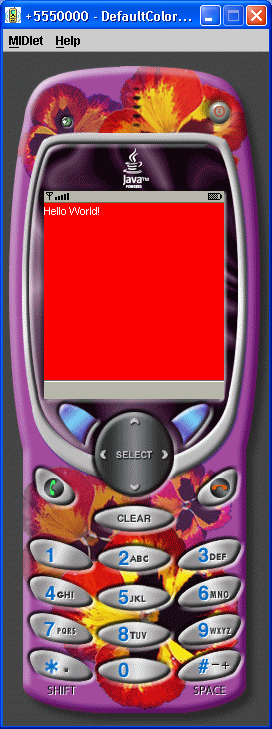
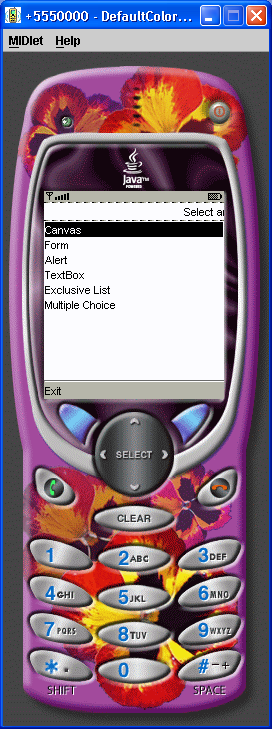
Simple Canvas
/*
Title:  J2ME Games With MIDP2
Authors:  Carol Hamer
Publisher:  Apress
ISBN:   1590593820
*/
import javax.microedition.midlet.*;
import javax.microedition.lcdui.*;

/**
 * This is the main class of the hello world demo.
 *
 * @author Carol Hamer
 */
public class Hello extends MIDlet implements CommandListener {

  /**
   * The canvas is the region of the screen that has been allotted
   * to the game.
   */
  HelloCanvas myCanvas;

  /**
   * The Command objects appear as buttons in this example.
   */
  private Command exitCommand = new Command("Exit", Command.EXIT, 99);

  /**
   * The Command objects appear as buttons in this example.
   */
  private Command toggleCommand = new Command("Toggle Msg", Command.SCREEN, 1);

  /**
   * Initialize the canvas and the commands.
   */
  public Hello() {
    myCanvas = new HelloCanvas();
    myCanvas.addCommand(exitCommand);
    myCanvas.addCommand(toggleCommand);
    // we set one command listener to listen to all
    // of the commands on the canvas:
    myCanvas.setCommandListener(this);
  }

  //----------------------------------------------------------------
  //  implementation of MIDlet

  /**
   * Start the application.
   */
  public void startApp() throws MIDletStateChangeException {
    // display my canvas on the screen:
    Display.getDisplay(this).setCurrent(myCanvas);
    myCanvas.repaint();
  }

  /**
   * If the MIDlet was using resources, it should release
   * them in this method.
   */
  public void destroyApp(boolean unconditional)
      throws MIDletStateChangeException {
  }

  /**
   * This method is called to notify the MIDlet to enter a paused
   * state.  The MIDlet should use this opportunity to release
   * shared resources.
   */
  public void pauseApp() {
  }

  //----------------------------------------------------------------
  //  implementation of CommandListener

  /*
   * Respond to a command issued on the Canvas.
   * (either reset or exit).
   */
  public void commandAction(Command c, Displayable s) {
    if(c == toggleCommand) {
      myCanvas.toggleHello();
    } else if(c == exitCommand) {
      try {
  destroyApp(false);
  notifyDestroyed();
      } catch (MIDletStateChangeException ex) {
      }
    }
  }

}


/**
 * This class represents the region of the screen that has been allotted
 * to the game.
 *
 * @author Carol Hamer
 */
class HelloCanvas extends Canvas {

  //---------------------------------------------------------
  //   fields

  /**
   * whether or not the screen should currently display the
   * "hello world" message.
   */
  boolean mySayHello = true;

  //-----------------------------------------------------
  //    initialization and game state changes

  /**
   * toggle the hello message.
   */
  void toggleHello() {
    mySayHello = !mySayHello;
    repaint();
  }

  //-------------------------------------------------------
  //  graphics methods

  /**
   * clear the screen and display the hello world message if appropriate.
   */
  public void paint(Graphics g) {
    // get the dimensions of the screen:
    int width = getWidth();
    int height = getHeight();
    // clear the screen (paint it white):
    g.setColor(0xffffff);
    // The first two args give the coordinates of the top
    // left corner of the rectangle.  (0,0) corresponds
    // to the top left corner of the screen.
    g.fillRect(0, 0, width, height);
    // display the hello world message if appropriate:.
    if(mySayHello) {
      Font font = g.getFont();
      int fontHeight = font.getHeight();
      int fontWidth = font.stringWidth("Hello World!");
      // set the text color to red:
      g.setColor(255, 0, 0);
      g.setFont(font);
      // write the string in the center of the screen
      g.drawString("Hello World!", (width - fontWidth)/2,
       (height - fontHeight)/2,
       g.TOP|g.LEFT);
    }
  }

}
Related examples in the same category